PEGAH ALIZADEH
HOW HANDLE THE PYTHON ON THE MAC
I have recently started using Mac. I found most program installations pretty easy and well prepared on Mac except "Python Installation". There is a pre-installed version of Python on mac that may confuse python users. Then, I decided to write about my whole journey from python installation to install required packages and using CPLEX inside python. Hope it helps all ordinary people who are not comfortable with all unix commands (such as me :) ).
This post includes several parts:
Install Python2.7 or Python3: My first part of installation comes from a nice youtube video as python-installation
Just before installation be sure that "Homebrew" has been installed on your mac. A brief explanation for Homebrew installation is:
If you receive this message: "Your system is ready to brew" then this is the time to continue to the next step. when write
you will have list of available pythons like "python" and "python3". then to install each python version write:
Normally python is installed in this address /usr/local/Cellar but to be sure about this address check install information results as the following picture:
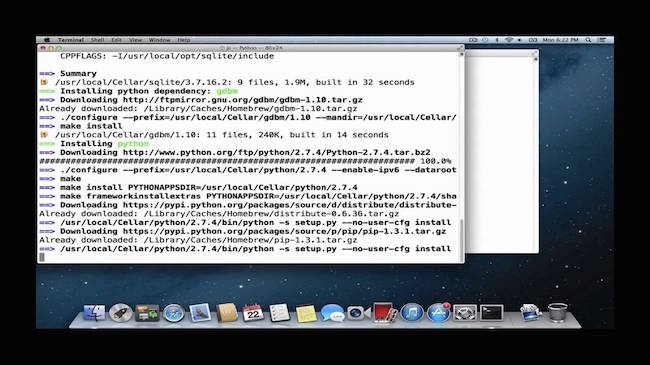
After finishing installation successfully, if you write in terminal:
you will find all installed files in this address.
set PYTHONPATH as a new installed python instead of pre-installed python on Mac
To check python pass first write:
you may receive this output: /usr/bin:/bin/:/usr/sbin:/sbin:/usr/local/bin. Here we want to put python path as the last given address in the list. In order to change address order we write:
After putting /usr/local/bin as a first directory in the list press ctrl+x+x (to save changes) and ctrl+x+c (to quite). Remember you should delete blank lines at the end of the list. Now when you open a NEW terminal and type
you will see this changing /usr/local/bin:/usr/bin:/bin/:/usr/sbin:/sbin
There are some remarks in installation information of python with brew as:
-- python Idle is inside Applications folder and you can open python by opening IDLE in Applications folder.
-- site-packages(It includes all python packages) are in /usr/local/bin/python2.7/site-packages or
-- to install a new package for installed version of python you just need to type:
Now when you write $python --version, it should be our installed version using brew. Still you can use the pre-installed version of python on mac by:
Another step is how to install new packages using pip in the new address for site packages: /usr/local/bin/python2.7/site-packages
Because for instance for installing "numpy" is you write "pip install numpy" it will be installed in the old site-packages address for pre-installed python: /Library/python/2.7/site-packages. To solve this problem, we should install "virtualenv" which assists us to define virtual environment and addresses.
How install "virtualenv" (explanation is taken from Patrick dubroy blog):
download the source from here: download virtualenv and write in terminal:
make this environment as python environment in ~/.profile or ~/.bash_profile using vim ~/.profile or vim ~/.bash_profile and inside vim, you write:
opening a new terminal window and checking that ‘which python’ returns something like ~/venv/base/bin/python. Now when you type
you will see that numpy is installed inside /usr/local/lib/python2.7/site-packages. You can continue installing new packages just using "pip install [package-name]"
Another problem is using CPLEX inside this new version of python(this explanation is based on Farshid Hassani blog).
after downloading and installing CPLEX from IBM website you go to ~/IBM/ILOG/CPLEX_Studio_Community1262/cplex/python/2.7/x86-64_osx and type:
After we need to add the path to PYTHONPATH:
now when you write
and inside python you write
it will work. The final step will be changing python2.7 as your interpreter inside Pycharm(If you use Pycharm as a python editor). Now your Mac is ready to code with Python and using CPLEX as a LP solver!!